Every interview video needs a thumbnail, and the frame that makes a good thumbnail is weirdly hard to find. You scrub through twenty minutes of talking, find a lovely smile, pause on it, and the frame is motion-blurred, or they're halfway through saying "so", or they blinked. Then you do it all again. We built SayCheese to do the scrubbing for us.
The problem with finding a good frame
A thumbnail or still grab of a person needs a lot to line up in a single 1/25th of a second:
- A real smile. Not a polite half-smile, and not the squinty peak of a laugh where the eyes disappear.
- Eyes open. A blink ruins the frame no matter how good everything else is, and blinks are easy to miss when you're scrubbing.
- No motion blur. People move when they talk. At normal shutter speeds, the moment someone laughs is often the moment their head moves.
- A natural mouth. Most frames of someone talking catch them mid-word: an open jaw, an "oo" or an "o". They look odd as a still.
Finding a frame that ticks all four is slow, and you can never be sure there wasn't a better one five minutes earlier. On a corporate video with several interviewees, or a batch of testimonial videos that each need a thumbnail, it adds up quickly.
What SayCheese does
SayCheese is a free Premiere Pro panel that sweeps a sequence (or just the clips you select) for smiles and ranks them as thumbnail candidates. Press Find smiles and it:
- Scans for smiles. It decodes the original media directly, finds faces with Google's MediaPipe face-tracking model, and measures how strongly each person is smiling a few times a second.
- Picks distinct moments. It takes the smile peaks with a minimum gap between them, so you get a dozen different moments rather than ten frames of the same laugh.
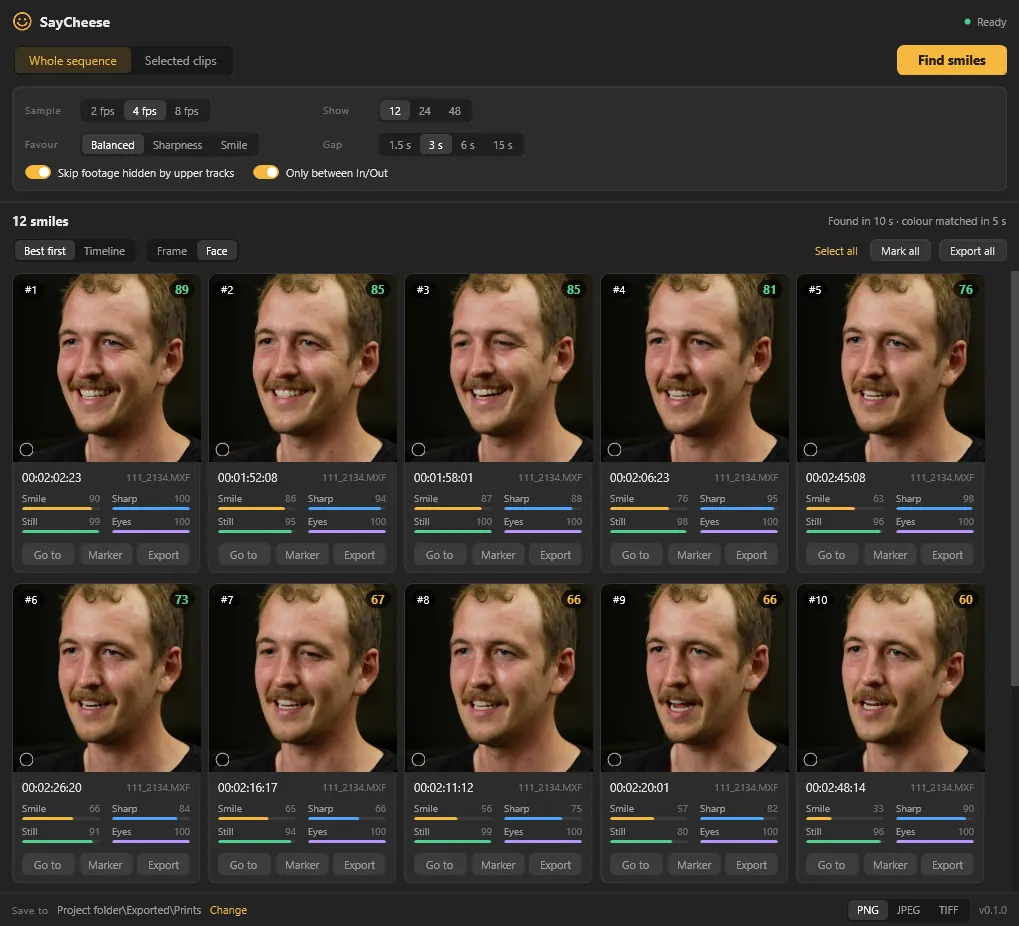
- Finds the best frame of each moment. Every frame around each peak is checked at full resolution for sharpness, stillness, open eyes and mouth shape, and the best one goes on a card with a score out of 100.
Click a card to jump the playhead to that frame. From there you can drop a marker with the scores, or export the frame as a full-size PNG, JPEG or TIFF. The thumbnails on the cards are re-rendered through Premiere, so they show your grade, effects and reframing rather than the raw camera footage.
How to use it
- Open your sequence and open the panel from Window → UXP Plugins → SayCheese.
- Choose what to scan. Whole sequence covers every enabled video clip, including inside nested sequences. Selected clips covers only what you've selected in the timeline. Tick Only between In/Out to limit either one to a range.
- Leave the defaults, or adjust them. Sample sets the scan rate (4 fps suits most things; drop to 2 fps for long interviews). Favour leans the ranking towards sharpness or towards smile. Gap sets how far apart the results must be.
- Press Find smiles. The cards appear as soon as the scan finishes, then switch one by one to frames rendered with your grade.
- Pick your favourites. Use the Face view to see close-ups, which make blur much easier to judge. Then Go to, Marker or Export.
With Skip footage hidden by upper tracks on, interview footage covered by B-roll is ignored, so you only get frames that are actually in the edit. Lower thirds and other graphics don't count as covering.
It's quick. An 11½-minute 1080p interview scanned off a network drive takes about a minute on Windows, and a two-minute 4K highlight reel takes about 30 seconds on an M1 Mac. Premiere stays usable while it runs.
How it scores a frame
For anyone curious about what's behind the number on each card:
- Smile: how strongly MediaPipe reads the mouth as smiling. There's deliberately no bonus for squinting cheeks or eyes, which would favour the narrow-eyed peak of a laugh over the open-eyed smile just before it.
- Eyes: each eye is checked by a dedicated open/closed-eye classifier, with MediaPipe's blink detection as a backup. Eyes act as a multiplier rather than one score among several, because a blink ruins a thumbnail however good the rest is.
- Sharpness: the amount of fine detail in the face, measured at a fixed face size so close-ups and wide shots are compared fairly.
- Stillness: how far the face moved since the previous frame. Movement between frames is what causes motion blur, so this catches soft frames that sharpness alone can miss.
- Mouth and angle: a penalty for mid-word mouth shapes, and a mild one for strong head turns.
The face tracking also looks in tiles when it can't find a face in the whole frame, so small, off-centre faces in wide interview shots are still picked up.
SayCheese decodes the media itself rather than rendering it through Premiere, which is what makes it fast. It handles H.264, HEVC, ProRes, DNxHD, MPEG-2, MPEG-4 and MJPEG in MP4, MOV, MXF, MKV, MPEG-TS and AVI. Camera RAW formats like BRAW and R3D aren't supported, so scan proxies or transcodes instead. Multicam clips are skipped with a warning; flatten them first.
Why we built it (and why it's free)
We built SayCheese because we were spending real time hunting for thumbnail frames on interview-led projects, and it's exactly the kind of job a computer should do better than a tired editor at the end of the day. The colour-matched cards also make it a fast way to pull stills for social posts, proposals and website headers from footage you've already shot.
Like Syncitol and Unphased, it's free and open-source on GitHub under the MIT licence. If it saves you a scrubbing session, we'd appreciate a tip on Ko-fi, but it's genuinely yours to keep either way.
Once you've got your frame, our guide to unlocking custom thumbnails on YouTube covers the next step.
Requirements & install
SayCheese requires Premiere Pro 26.0+ on 64-bit Windows or an Apple Silicon Mac (M1 or later) running macOS 14 or later. Intel Macs aren't supported, because Google doesn't make its face-tracking library for them. On an Intel Mac, or with Premiere set to open using Rosetta, the panel tells you so rather than failing silently.
It's a UXP plugin with the analysis engine built in, so there's nothing else to install or start. To install: download the .ccx, double-click it, and Creative Cloud handles the rest. Open Premiere Pro and find SayCheese under Window → UXP Plugins. The same file installs on Windows and Mac.
The panel checks GitHub once a day and shows a banner when a newer version is out. Installing a newer .ccx replaces the old one.
SayCheese isn't signed with an Apple Developer certificate, so macOS may block it the first time Premiere Pro tries to load it. If it does, go to System Settings → Privacy & Security, click Allow Anyway on the message about SayCheese, then restart Premiere Pro. Once you've allowed it, it won't ask again.
Download SayCheese
Download SayCheese v0.3.0 (.ccx)
It's a 74 MB download, mostly the face-tracking library for both Windows and Mac. Double-click the .ccx, Creative Cloud installs it, and you'll find SayCheese under Window → UXP Plugins in Premiere Pro.
Source code, issue tracker and release history are all on GitHub. If you run into anything, open an issue and we'll look into it.
And if you'd rather someone else handled the whole thing, from planning and filming the interviews to the final edit, get in touch.