If you've ever sat in front of Premiere Pro manually nudging clips into sync across a multi-camera shoot, you know the feeling. It's tedious, error-prone, and it eats hours you'd rather spend editing. That's why we built Syncitol.
The problem with multicam sync in Premiere
Premiere Pro's built-in multicam workflow is decent for simple setups — two cameras, same audio source, clean timecode. But real-world shoots are messier than that:
- Multiple cameras started and stopped at different times throughout the day
- Separate audio recorders running independently
- No shared timecode between devices
- Dozens of clips that need to land on the same timeline in the right positions
Premiere's "Synchronize" and "Create Multi-Camera Source Sequence" features struggle with this. They work clip-by-clip, don't handle gaps in recording well, and often need manual correction. Third-party tools like PluralEyes exist, but they're paid software with their own quirks.
As a corporate video production team shooting multi-camera events, interviews and conferences regularly, we dealt with this enough times to build our own solution.
What Syncitol does
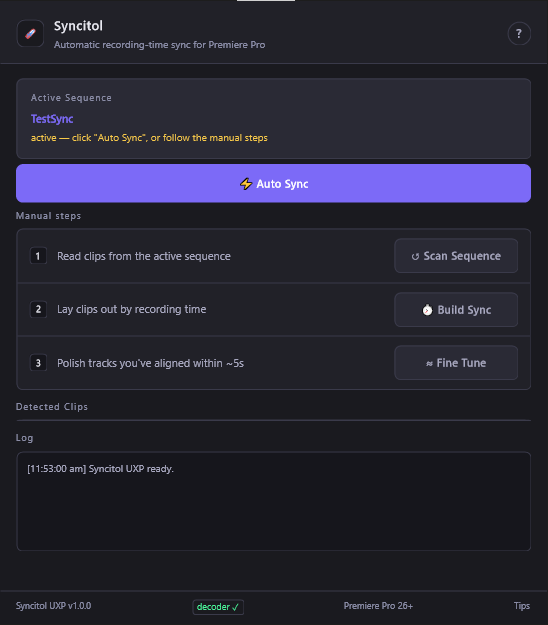
Syncitol is a free Premiere Pro plugin that rebuilds real recording-time sync automatically. Point it at a sequence full of unsorted clips and it does everything in one pass:
- Reads real recording times. It pulls embedded creation-time metadata and timecode from each clip — the actual timestamp your camera or recorder wrote when it started rolling. If that metadata isn't available, it falls back to file dates.
- Builds a real-time timeline. It lays every clip out on a new sequence so the gaps between them match real elapsed time. If Camera A stopped for 20 minutes while Camera B kept rolling, that gap is preserved exactly.
- Fine-aligns by audio waveform. Once the coarse layout is done, Syncitol cross-correlates the audio waveforms to nudge each clip into sample-accurate sync. This handles the small timing discrepancies that metadata alone can't resolve.
One click on "Auto Sync" runs the whole pipeline. No configuration, no manual intervention.
Why we built it (and why it's free)
We built Syncitol because we needed it. On a typical event or conference shoot, we're dealing with 20-40 clips across two or more cameras, plus separate audio. Syncing that manually was chewing up time we'd rather spend on the actual edit.
We made it free and open-source on GitHub because the post-production community has given us a lot over the years, and a good sync tool shouldn't be something you have to pay for. If Syncitol saves you a re-sync session, we'd appreciate a tip on Ko-fi — but it's genuinely yours to keep either way.
How it works under the hood
For anyone curious about the technical side:
- Coarse pass: Syncitol reads Premiere's
.pekpeak cache files first — these are the waveform previews Premiere has already generated. This means the coarse alignment often needs zero audio decoding, which makes it fast. - Staged search: The coarse pass tries multiple strategies in order — peak cache, timecode, timestamps, learned offsets from previous pairs — and only falls through to full audio decoding if the faster methods don't find a confident match.
- Fine pass: Cross-correlation on decoded audio with drift detection, so even if your cameras' clocks were slightly off over a long recording, the sync stays tight.
- Non-destructive: Syncitol builds a new sequence — your original timeline is never modified. One undo step reverts everything.
Premiere Pro sequences max out at 24 hours, and Syncitol places clips based on real-world recording times — so if your first clip was shot at 8am and your last at 6pm, they'll be spaced across 10 hours of timeline. Sync one day of footage at a time. Multi-day shoots that span more than 24 hours of real clock time won't fit on a single sequence.
The audio decoder is bundled into the plugin (a trimmed FFmpeg build), so there's nothing extra to install — no ffmpeg on your PATH, no Node.js, no command-line setup. Download the .ccx, double-click, and it's installed.
Requirements & install
Syncitol requires Premiere Pro 26.0+ on Windows or macOS. It's a UXP plugin — completely self-contained with no external dependencies. No ffmpeg install, no Node.js, no PATH setup.
To install: download the .ccx, double-click it, and Creative Cloud handles the rest. Open Premiere Pro and find Syncitol under Window → UXP Plugins.
Expect a security warning the first time. After installing, Premiere Pro will say it can't load the plugin. Go to System Settings → Privacy & Security, click Allow Anyway on the message about Syncitol, then restart Premiere Pro. This happens because the plugin isn't signed with an Apple Developer certificate — removing the warning would require a $99/year Apple Developer account, and since this is a free plugin built on Windows, that's not something we're planning to do. Once you allow it the first time, it won't ask again.
When to use Syncitol vs Premiere's built-in tools
Premiere's native multicam sync works fine for:
- Two cameras with clean, shared audio
- Clips that all start at roughly the same time
- Simple setups where timecode is locked
Syncitol earns its keep when:
- You have many clips started and stopped throughout a shoot
- Cameras and recorders weren't timecode-synced
- You need to reconstruct what happened when, not just line up two angles
- You're tired of doing it manually every time
Download Syncitol
Download Syncitol v1.6.0 (.ccx)
Double-click the .ccx, Creative Cloud installs it, and you'll find Syncitol under Window → UXP Plugins in Premiere Pro.
Syncitol is free and open-source on GitHub — source code, issue tracker, and release history are all there. If you run into anything, open an issue and we'll look into it.
And if you need a hand with anything beyond the edit — planning, filming, or producing your next video project — get in touch.