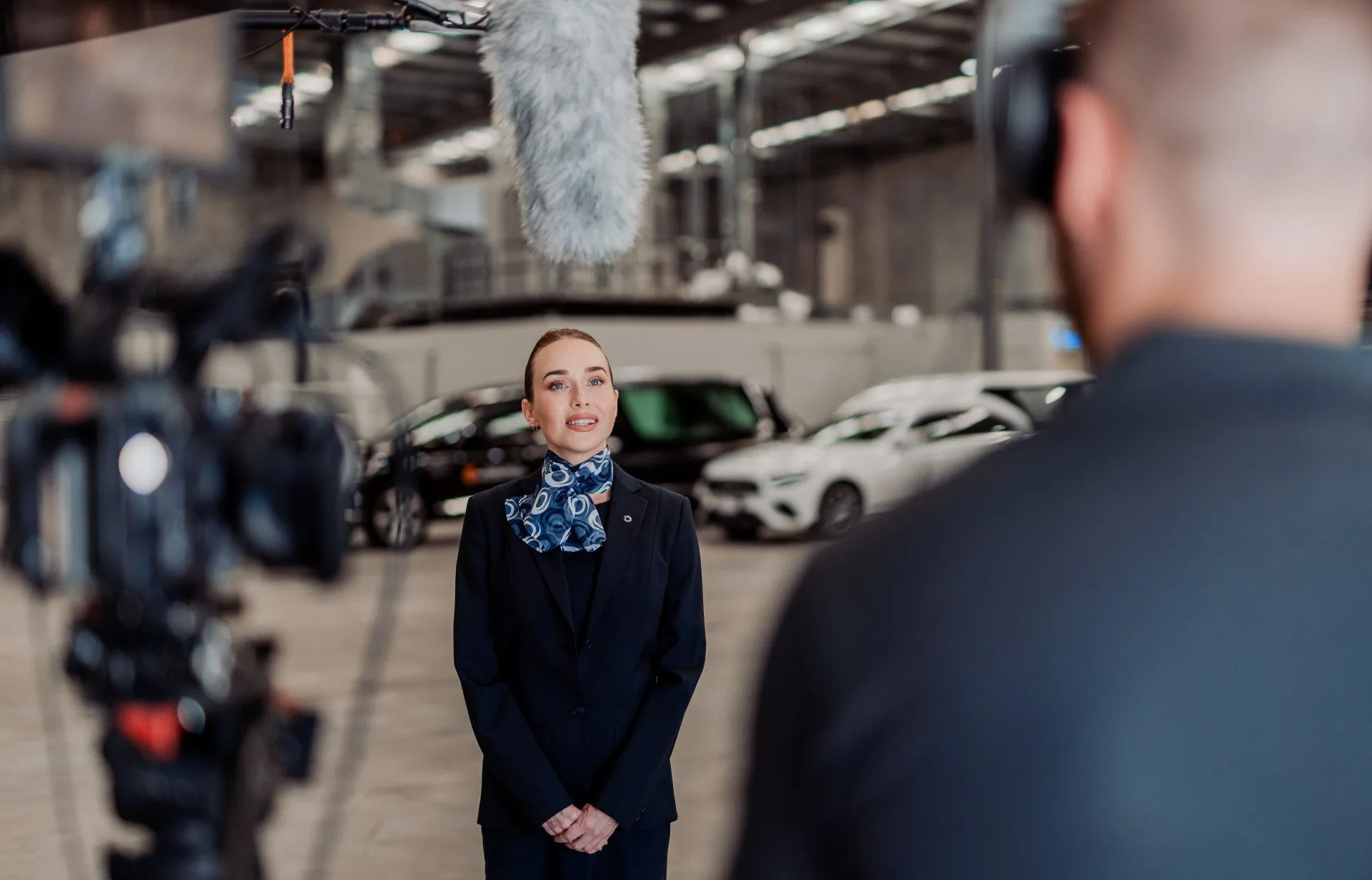
If you've ever recorded a talking head with a boom and a lav, you know the drill: the lav sounds close and present, the boom has the room tone and natural feel you want, and combining them should make magic — except they're a few milliseconds out of sync, maybe inverted in polarity, and the phase relationship shifts throughout the take. Fixing that by hand is fiddly and slow. We built a plugin that does it automatically.
The problem: aligning multiple mics in post
On a typical corporate video shoot, we're running at least two mics per subject — usually a lavalier and a boom, sometimes a camera mic as well. Each picks up the same voice from a different position, which means:
- Time delay. Sound reaches each mic at different times. A lav clipped to someone's chest and a boom two metres overhead can be 5-20 ms apart.
- Drift. If the mics are on different recorders, their clocks drift relative to each other. A 3 ms offset at the start of a 20-minute interview might be 8 ms by the end.
- Polarity. One mic may be wired with inverted polarity. Mix them together and they partially cancel instead of reinforcing each other.
- Phase differences. The room reflections hitting each mic at different angles create a phase relationship that changes with the speaker's position and the acoustic environment.
Tools like Sound Devices' Auto Align Post handle this well, but they're paid software. We wanted something free, open-source, and built directly into the Premiere Pro panel.
What Unphased does
Unphased is a free Premiere Pro plugin that aligns lav mics (or any other mics) to a reference track with three layers of correction:
- Dynamic time-varying delay correction. Not just a single offset — Unphased tracks how the delay between two mics changes throughout a clip, so clock drift between recorders is handled automatically.
- Automatic polarity fixing. If your lav is inverted relative to your boom, Unphased detects and corrects it.
- Spectral phase correction. Beyond simple delay, Unphased applies frequency-dependent phase correction that tracks the changing phase relationship between mics over time.
The corrected audio is rendered as new WAV files and placed back into your timeline non-destructively — the originals are muted but still there if you need them.
How to use it
The workflow is straightforward:
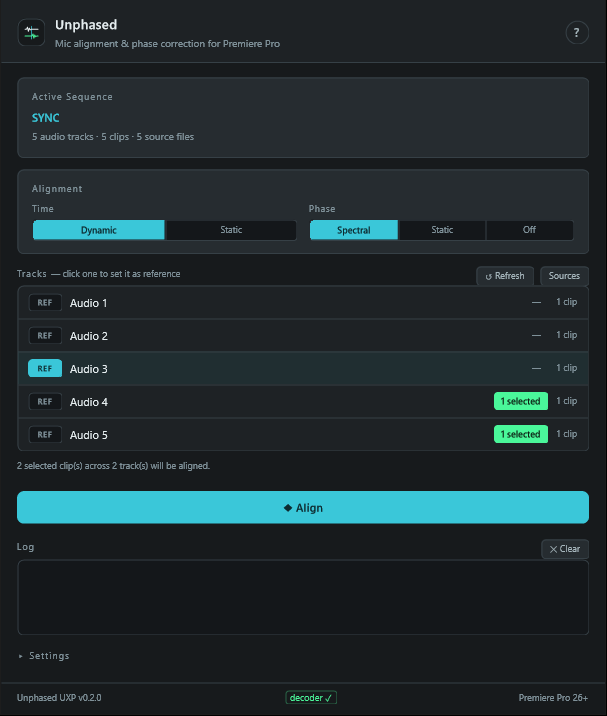
- Open your sequence. Unphased reads it automatically — no scan step needed.
- Click a track to mark it as REF — your boom or whichever mic is the reference.
- Select the clips you want to align in the timeline. Any track with a selected clip becomes a target.
- Choose your correction mode. Time: Dynamic (tracks drift) or Static (single offset). Phase: Spectral (time-varying), Static, or Off.
- Press Align. Unphased extracts the overlapping audio, computes the correction, renders aligned WAVs, and places them on new tracks at the exact original positions.
Failed pairs — no correlation, too little overlap, offline media — are skipped with a warning. Nothing in your timeline is modified for clips that can't be aligned.
Reading the results
After alignment, each pair reports a Null depth — how deeply the aligned clip cancels against the reference when you invert one:
- 10-25 dB: A genuinely good alignment of two different mics on the same source.
- 3-10 dB: Normal for mics in very different positions (lav vs camera-mounted). The timing is corrected; the acoustics still differ.
- > 40 dB: Suspiciously perfect — usually means both sides decoded the same audio. Check your source assignment.
You can A/B the result immediately: the originals are disabled on the timeline, so just toggle them back on to compare.
Why it matters for video production
This isn't just an audio nerd tool. Proper mic alignment directly affects the quality of your final video:
- Cleaner dialogue. When mics are in phase and time-aligned, mixing them reinforces the voice instead of smearing it. The result is a tighter, more present sound.
- Better noise rejection. A boom and lav in proper alignment let you blend the close presence of the lav with the natural room tone of the boom — and the noise that's different between them cancels out.
- Faster mixing. Instead of spending time manually nudging waveforms in the timeline, you get a clean starting point and move straight to EQ, compression, and levels.
On a multi-person event shoot or a day of training video interviews, this saves real time — and the audio quality difference is audible.
Technical details
For the audio engineers and the curious:
- GCC-PHAT cross-correlation for sub-sample delay estimation
- Lattice-based dynamic alignment that tracks delay drift over time, not just a single best-fit offset
- Coherence-weighted phase correction that only corrects frequency bands where the two signals are actually correlated — it won't try to "fix" bands that are just noise
- Stereo and multichannel preservation — analysis runs on a 48 kHz mono signal, but correction is applied to every channel at the source's native sample rate and bit depth
- Camera audio handling — multi-input cameras (Sony FX6, etc.) that write one stream per mic are handled with a source-channel picker, so tracks sharing the same media file can be assigned to the right input
The DSP engine is pure JavaScript with no dependencies — 89 tests covering FFT, cross-correlation, drift tracking, phase correction, and more. The audio decoder is a bundled FFmpeg build, so there's nothing to install beyond the plugin itself.
Requirements & install
Unphased requires Premiere Pro 26.0+ on Windows or macOS. It's a UXP plugin — completely self-contained with no external dependencies. No ffmpeg install, no Node.js, no PATH setup.
To install: download the .ccx, double-click it, and Creative Cloud handles the rest. Open Premiere Pro and find Unphased under Window → UXP Plugins.
Expect a security warning the first time. After installing, Premiere Pro will say it can't load the plugin. Go to System Settings → Privacy & Security, click Allow Anyway on the message about Unphased, then restart Premiere Pro. This happens because the plugin isn't signed with an Apple Developer certificate — removing the warning would require a $99/year Apple Developer account, and since this is a free plugin built on Windows, that's not something we're planning to do. Once you allow it the first time, it won't ask again.
Download Unphased
Download Unphased v1.1.0 (.ccx)
Double-click the .ccx, Creative Cloud installs it, and you'll find Unphased under Window → UXP Plugins in Premiere Pro.
Unphased is free and open-source under the MIT license — source code, issue tracker, and release history are all on GitHub. Bug reports and pull requests are welcome.
If you're looking for help with the bigger picture — planning, filming, or producing your next video — we'd love to hear from you.